Data Visualization with pandas
Data visualization can help you explore and communicate data. pandas provides a convenient plotting interface, but its default backend requires the optional Matplotlib library. These examples are verified with Matplotlib 3.11.2; chart choice and accessible presentation still require deliberate judgment.
1. Basic Plotting with pandas
Pandas makes it easy to create a variety of standard visualizations directly from your DataFrame.
1.1 Line Plots
Line plots are useful for visualizing data over time or continuous data. You can create a line plot using the .plot() method.
import pandas as pd
import matplotlib.pyplot as plt

# Sample data
data = {
    'Year': [2020, 2021, 2022, 2023, 2024],
    'Sales': [200, 220, 240, 260, 280]
}
sales_df = pd.DataFrame(data)

# Creating a line plot
sales_df.plot(x='Year', y='Sales', kind='line', title='Yearly Sales')
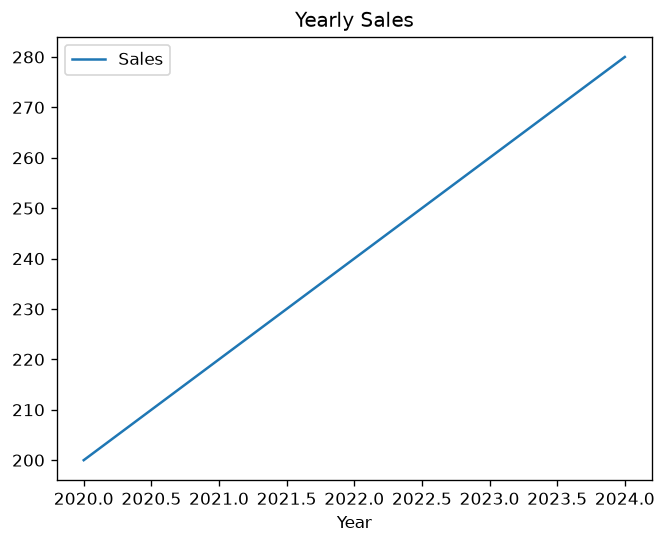 Figure 1: Line Plot showing yearly sales.
1.2 Bar Plots
Bar plots are ideal for comparing categorical data. You can create a bar plot by specifying kind='bar' in the .plot() method.
# Creating a bar plot
sales_df.plot(x='Year', y='Sales', kind='bar')
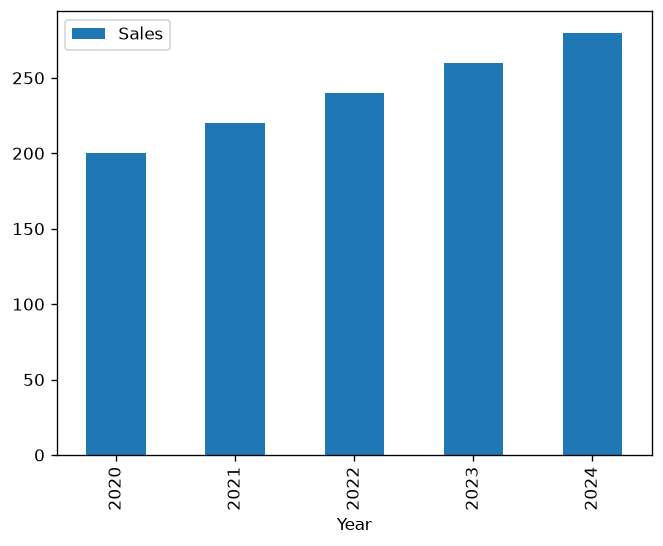 Figure 2: Bar Plot comparing yearly sales.
1.3 Histogram
Histograms are used to visualize the distribution of a dataset. Pandas makes it easy to create a histogram with the .plot() method.
# Creating a histogram
sales_df['Sales'].plot(kind='hist')
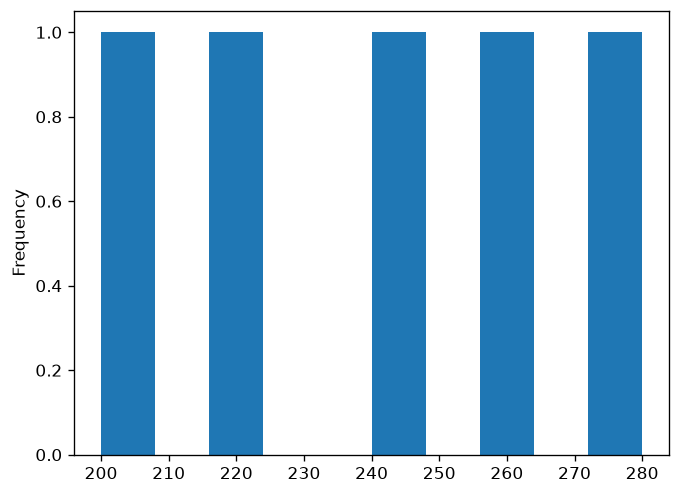 Figure 3: Histogram showing the distribution of sales.
1.4 Scatter Plots
Scatter plots are useful for identifying relationships between two numerical variables.
# Sample data with two variables
data = {
    'Advertising': [50, 60, 70, 80, 90],
    'Sales': [200, 220, 240, 260, 280]
}
scatter_df = pd.DataFrame(data)

# Creating a scatter plot
scatter_df.plot(x='Advertising', y='Sales', kind='scatter')
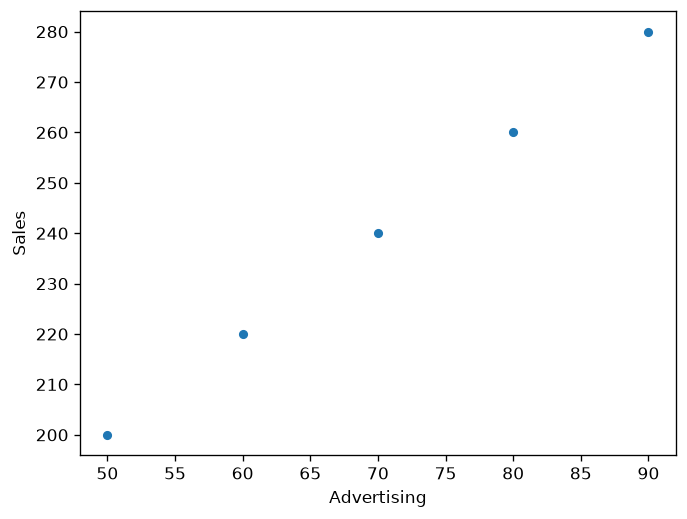 Figure 4: Scatter Plot showing the relationship between advertising spend and sales.
1.5 Box Plots
Box plots (or whisker plots) provide a summary of a dataset’s distribution, including its median, quartiles, and outliers.
# Sample data with multiple categories
data = {
    'Category': ['A', 'A', 'A', 'B', 'B', 'B'],
    'Values': [100, 120, 110, 150, 160, 155]
}
category_df = pd.DataFrame(data)

# Creating a box plot
category_df.boxplot(by='Category', column='Values', grid=False)
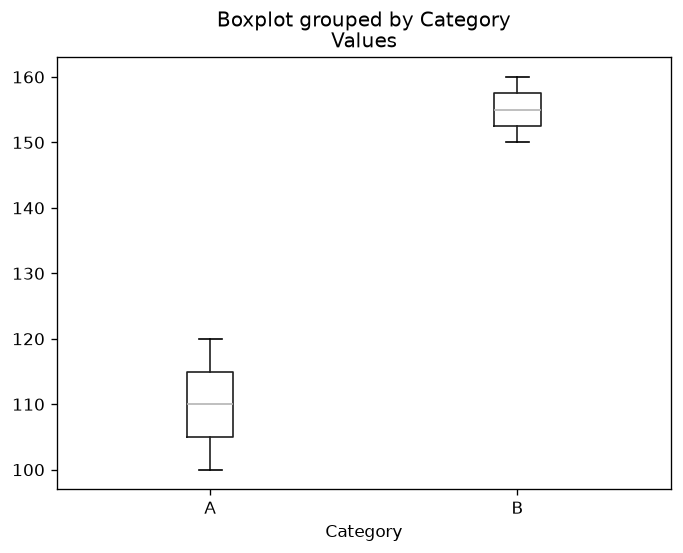 Figure 5: Box Plot comparing values across different categories.
2. Customizing Your Plots
Pandas allows you to customize your plots with various options to enhance their appearance and make them more informative.
2.1 Adding Titles and Labels
You can add titles and labels to your plots to provide more context.
# Adding a title and labels to a line plot
sales_df.plot(x='Year', y='Sales', kind='line', title='Yearly Sales')
plt.xlabel('Year')
plt.ylabel('Sales')
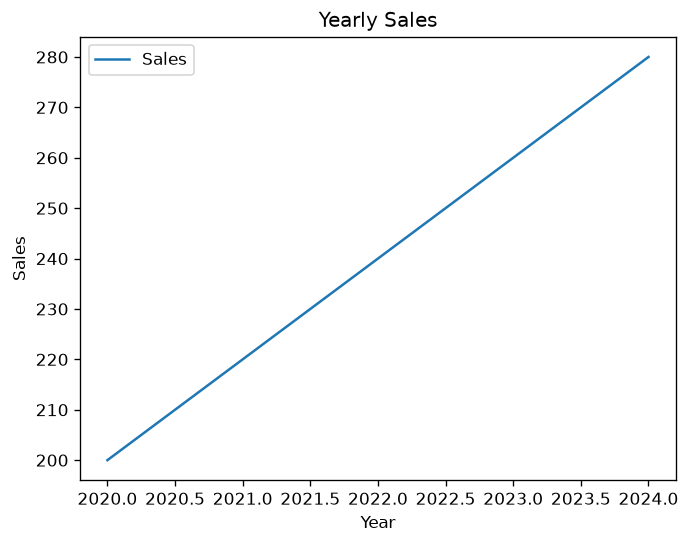 Figure 6: Custom Line Plot with title labels.
2.2 Changing Plot Styles
Pandas supports different styles for your plots, which you can set using the style parameter.
# Changing the style of a line plot
sales_df.plot(x='Year', y='Sales', kind='line', style='--', title='Yearly Sales')
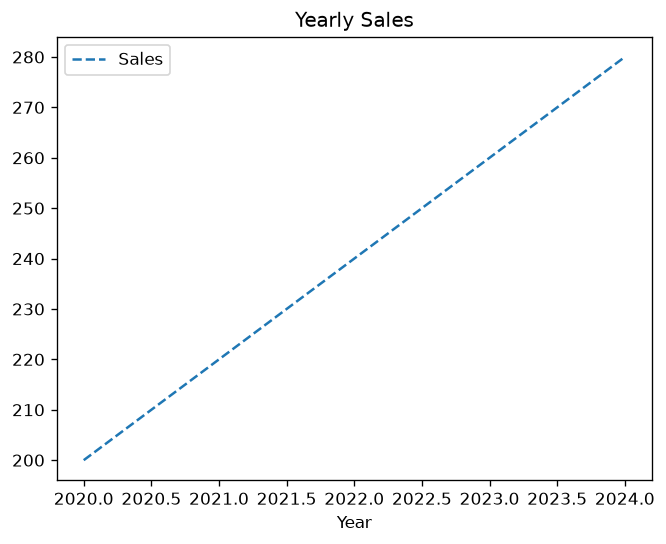 Figure 7: Styled Line Plot with dashed lines.
3. Saving Plots to Files
Once you’ve created a plot, you might want to save it to a file for later use or reporting.
3.1 Saving Plots
You can save a plot directly using the savefig() method from Matplotlib, which pandas uses under the hood for plotting.
# Saving a plot to a file
sales_df.plot(x='Year', y='Sales', kind='line', title='Yearly Sales')
plt.savefig('yearly_sales.png')
plt.close('all')
Version Notes and Verified Behavior
These examples use pandas 3.0.6 with the optional Matplotlib 3.11.2 plotting backend. A pandas plot returns a Matplotlib Axes; retain that object for labels and saving. Choose a chart that matches the question, label axes and units, provide sufficient contrast, and do not rely on color alone to communicate categories. Close figures in scripts and tests to release resources.
verification_data = pd.DataFrame({'year': [2023, 2024], 'sales': [10, 12]})
verification_ax = verification_data.plot(x='year', y='sales', marker='o')
verification_ax.set(xlabel='Year', ylabel='Sales (units)')

assert verification_ax.get_xlabel() == 'Year'
assert verification_ax.get_ylabel() == 'Sales (units)'
assert len(verification_ax.lines) == 1
plt.close(verification_ax.figure)
Official references: pandas visualization guide, DataFrame.plot, and Matplotlib accessibility guidance.
4. Conclusion
Pandas’ built-in plotting capabilities make it easy to create basic visualizations directly from your DataFrame. These simple yet powerful tools are often sufficient for exploring your data and conveying your findings. Advanced visualization techniques can be explored later using libraries like Matplotlib and Seaborn.